
UTS College computers and WiFi
We recommend using your own device while studying at UTS College. WiFi is readily available on campus. You’ll also find UTS College computers in the following break out areas:
| Break Out areas | Days | Hours |
|---|---|---|
UTS Building 5 Block C
|
Monday-Friday – During and outside Academic terms | 8:00am – 6:00pm |
Computer Use
All computers have the software available listed below.
| General Software | Multimedia Tools | Acad/FDN Tools |
| CDT Test | Audacity | Blue J |
| Lockdown Browser | Open VLC | Java 8 Update 144 |
| 7 Zip | Adobe Flash builder | Java 2 SDK |
| Adobe Acrobat | Adobe Shockwave Player | Java SE Dkit 7 |
| Office Suite | EndNote | Mathematica |
| Google Chrome | Minitab | |
| Internet Explorer | Notepad++ | |
| Microsoft Edge | Putty | |
| Visio | ||
| Project | ||
| Cisco Lab Packet Tracer | ||
| Adobe Premiere | ||
| Adobe Illustrator | ||
| Adobe PS | ||
| Adobe Animate | ||
| Adobe Bridge | ||
| Adobe InDesign | ||
| Adobe Dreamweaver | ||
| Adobe Light Room | ||
| Adobe Fireworks | ||
| Adobe Audition | ||
| Adobe Media Encoder | ||
| Adobe After Effect | ||
| Adobe Extension Manager |
- To log in to a UTS College computer, press any key at the login screen.
- Read the 'Condition of Use' and press 'OK'.
- Enter your username and password:
- Username: Your student number,
- Password: Your password, and
- Click the arrow button to finish.
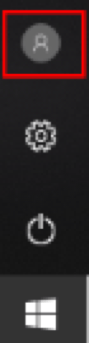
- To logout from a UTS College computer, click the start button on the bottom left corner.

- Click the icon highlighted below.
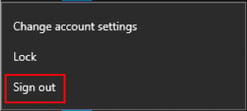
- Click 'Sign Out'.
Cloud printing
You can send printable documents directly to the UTS Print Queue via a web page.
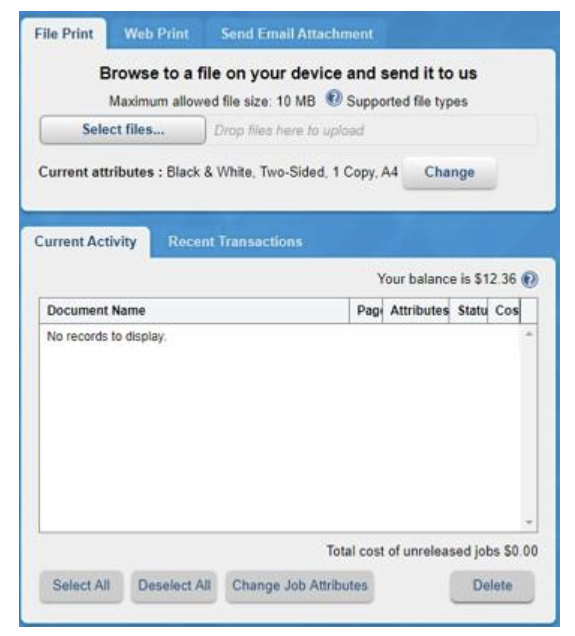
- Navigate to myprint.uts.edu.au
- Log in with your student ID number and password.
- Click Select files
- Choose your document to upload, and once uploaded wait for your document to finish processing.
- Go to any print release station or printer with an ID card reader to release your job.
Releasing a print job
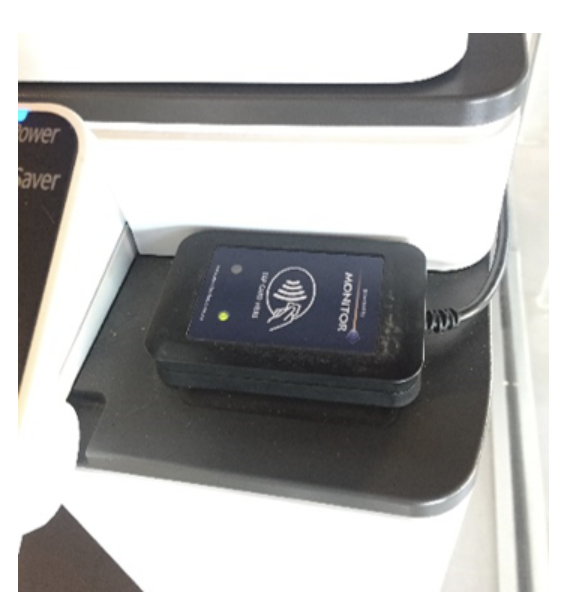
Once you have submitted your print job you can release it from the Cloud Print Queue at a Print Release Station or printer with an embedded ID card reader.
Tap your student ID card on the card reader (if available) at the printer. Release your print job using the instructions and prompts on the screen.
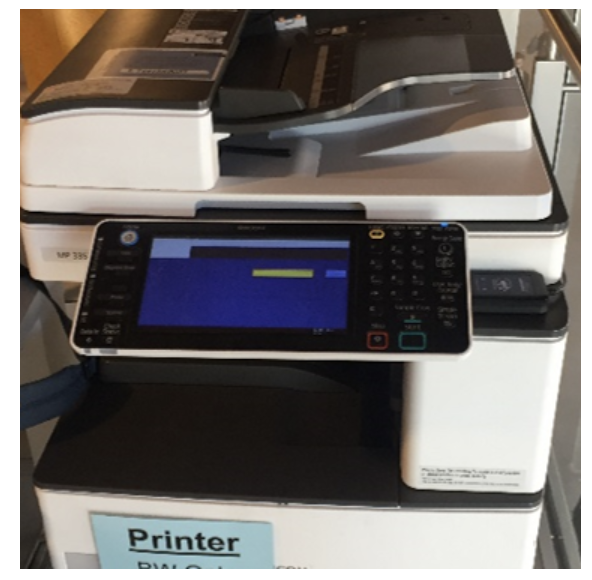
Adding value to College Cloud Print Account
Recharging funds via MyMonitor Web Portal
Step 1: Login to MyMonitor using your Student ID username and password.
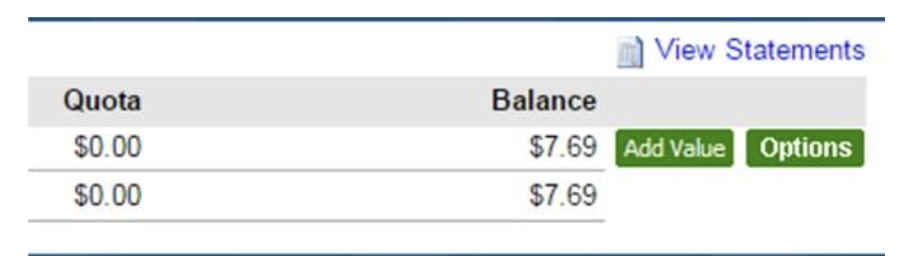
Step 2: Click on the Add Value button to begin adding funds to your MyPrint Account.
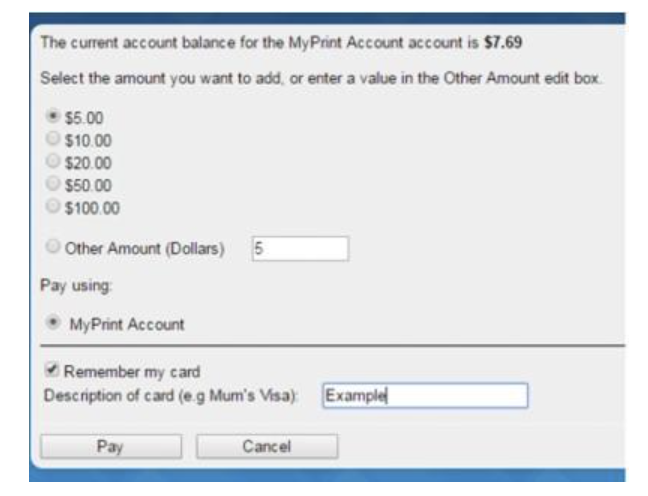
Step 3: Select the amount that you want to add to your account, or select ‘Other Amount’ and enter a value in the text box. (Minimum $5.00. Maximum $100.00.)
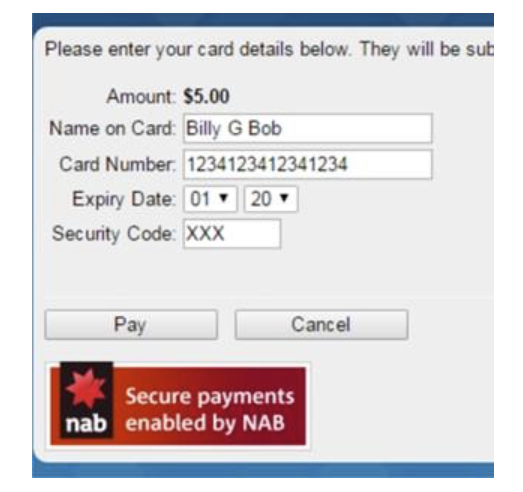
Step 4: Enter your credit card details, and click ‘Pay’.
Step 5: Once you have paid, your MyPrint account will immediately be topped up and you will receive a receipt, which you can choose to print.
Printing costs
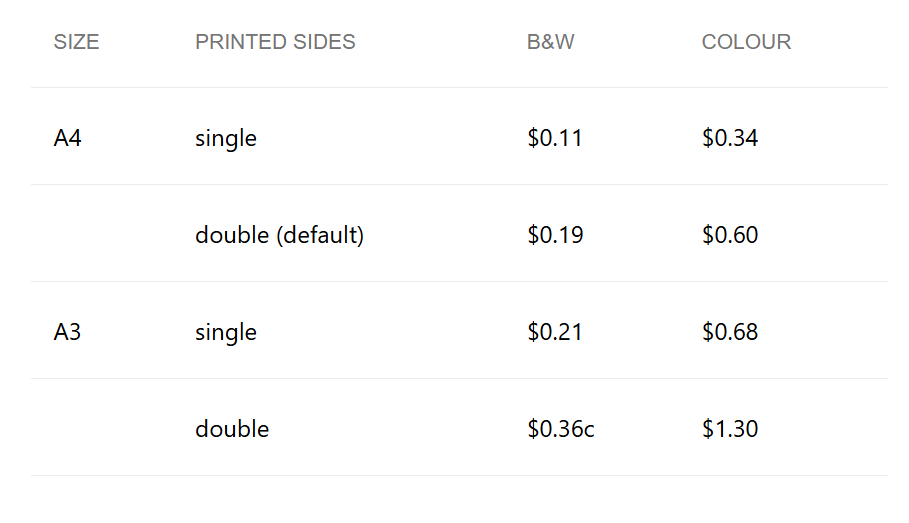
In order to make it comfortable for all students to use the UTS College computers, please follow these common-sense rules.
- Do not bring in food or drinks as there are common areas located on every level,
- Do not change settings or modify the system,
- Do not remove cabling or hardware from the systems,
- No malicious attempts to damage system physically or with malware,
- Any issues regarding malicious damage will result in failure to comply with policy,
- Do not play games or other leisure activities, everything is monitored,
- No sharing of passwords, log out after each use,
- No connecting to Ethernet ports located across campus,
- Keep the area clean and tidy as it is shared by everyone,
- Please throw all rubbish in bins provided,
- Breaches of policy will be dealt with in accordance with the Non-academic Misconduct Policy.
What hardware you need to bring
Bring your own device (BYOD)
At UTS College, you’ll need to Bring Your Own Device (BYOD). You can use devices with larger screens (tablets or laptops) around campus and connect to our WiFi. You can access learning resources, communicate and collaborate with classmates.
Make sure you bring your laptop (along with your headphones and battery pack) to campus. Please note that mobile phones, Chromebooks and tablets are not suitable to use on their own for self-study, online resources or exams. Most class materials and systems are designed for laptop use.
Chargers and power adaptors
There are plenty of charging stations around campus. It’s a good idea to always carry chargers for your phone, camera, laptop, and any other device (including an adapter for Australian power outlets).
WiFi on campus
Use your own smart device, phone, or laptop all over the UTS College campus using the UTS College WiFi network. You can connect up-to four devices at the same time.
You’ll need a current UTS College username and password to access the network (your username is your UTS email address, which looks like this: 12345678@uts.edu.au
If you’ve forgotten your UTS College account password, you can log onto the ITDS Service Desk Portal or call them on (+61 2) 9218 7000 for help.
For your protection, web traffic over WiFi is monitored for unacceptable use, and it’s important to comply with both UTS and UTS College computer use policies:
When you use UTS College ITDS facilities, you agree to abide by the ITDS Acceptable Use Policy. The policy outlines your rights and responsibilities when using the services.
Step 1
Go to your WiFi settings on your device.
Step 2
Select "eduroam" from the list.
Step 3
Type in your username and password and click "join"or "connect".
Step 4
If prompted by a certificate click "accept" or "continue".
Step 5
That’s it. You’re connected.
Accessing WiFi in UTS buildings
As well as accessing WiFi in UTS College campus locations, you can also access eduroam across the whole UTS campus. This secure, roaming access service gives you access to WiFi when visiting universities. You can connect to the eduroam network at UTS with your UTS email address and password.
Alternatives to WiFi
If you don’t have a wireless-enabled laptop, there are computers on campus you can use.
Help with connecting to WiFi
If you need help accessing WiFi, logon to the UTS College ITDS Service Desk Portal.
You can also call the ITDS Service Desk on (+61 2) 9218 7000 or visit in person, Monday to Friday (8.30am – 7:00pm).