
With MFA, you’ll need to provide a second form of identity when logging into UTS College systems. This additional form of identity (or ‘factor’) helps us identify that it is you (and not someone else – i.e. a cybercriminal) using your password to access the College’s systems.
Setting up Okta Multi-Factor Authentication (MFA) for Staff - UTS College Accounts
Overview
This article provides step-by-step instructions on how to set up Multi-Factor Authentication (MFA) for UTS College Staff accounts.
Multi-factor authentication (MFA) strengthens security by requiring that users provide at least two pieces of evidence, or authentication factors, to prove their identity. By requiring multiple authentication factors, MFA provides a higher level of assurance about the user’s identity. Even if one of the factors has been compromised, the chances that all of the factors have been compromised are low.
Note that SMS is no longer considered a secure authentication method. SMS as a factor will no longer be available for UTS College systems as of the 31st of August 2024. Therefore, we encourage the use of stronger factors of authentication at UTS College to improve your security and protect the College data.
Prerequisites
Before you can set up MFA, you need to have an active UTS College account.
Procedure
1. Navigate to login.utscollege.edu.au and enter your UTS College email address in the format of Firstname.Lastname@insearch.edu.au or @insearch.edu.lk or @insearch.com.cn then click Next.
2. Enter your UTS College Email Password then click Verify.
3. On Okta homepage, click on your name in top right corner, then choose Settings.
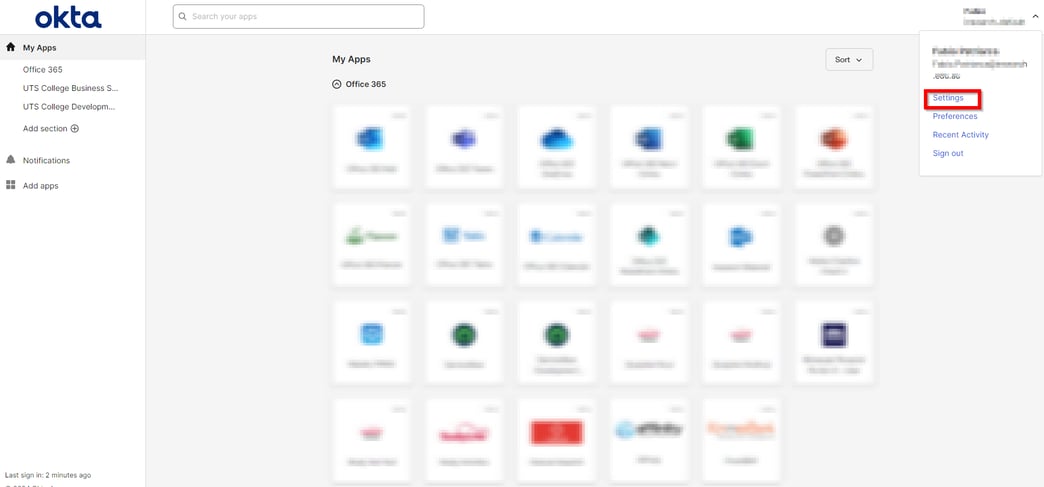
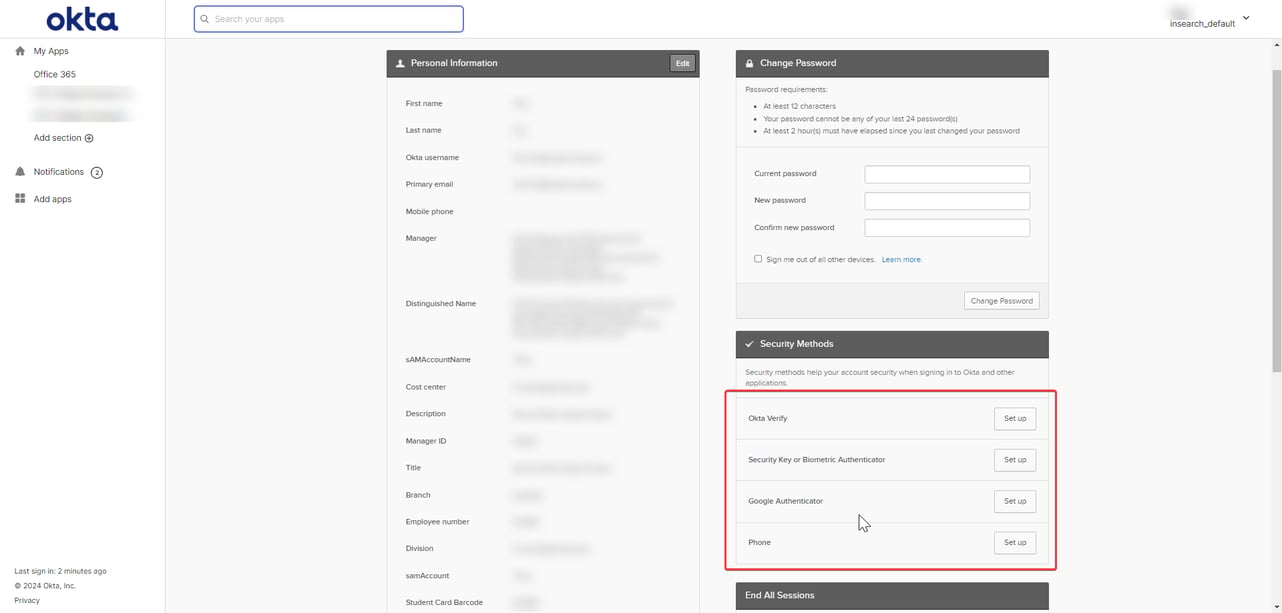
4. Click Set Up depending on options available to you.
Note: If you are physically located in China, please set up the "Phone" option.
5. Re-enter your UTS College Email Password for verification then click Verify.
On Edit Profile page, scroll down to Extra Verification and choose your preferences:
- Through Okta Verify App - Continue to step 5A
- Through Google/Microsoft Authenticator Apps - Continue to step 5B
- Through Security Key/Biometric Authenticator - Continue to step 5C
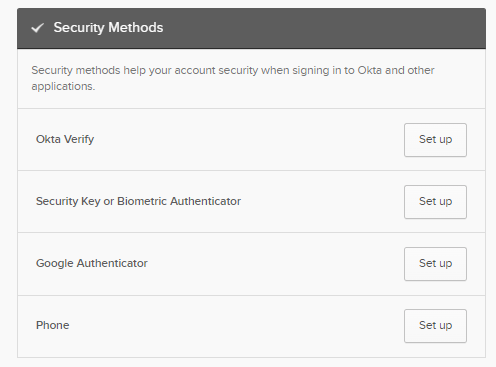
5A. Through Okta Verify App Configuration:
You need to install the Okta Verify app on your mobile device (Apple Store for iPhone or Play Store for Android).
Click here to download Okta Verify for Apple iPhone . Click here to download Okta Verify for Android phone.
- Continue with Okta on desktop, under Extra Verification, click Set up next to Okta Verify. Click on Set up on the next page.
- Open the Okta Verify app on your phone, click on Add Account and select "Organization".
- Scan the QR code on Okta set up page follow the prompt on your phone to finish the setup.
5B. Through Google/Microsoft Authentication Apps
You need to install the Google or Microsoft Authenticator app on your mobile device (Apple Store for iPhone or Play Store for Android).
NOTE: Despite the option ONLY saying 'Google Authenticator', you CAN use Microsoft Authenticator app to set up your security method as well. This is to provide a viable option for countries/regions where Google is unavailable.
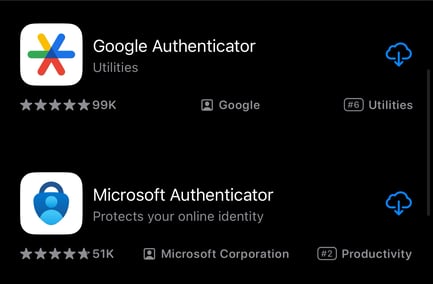
- Select 'Set Up' button for the 'Google Authenticator' method.
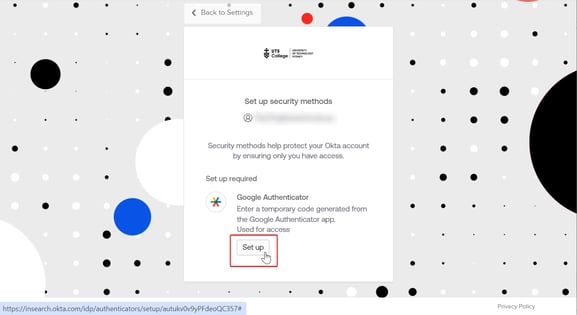
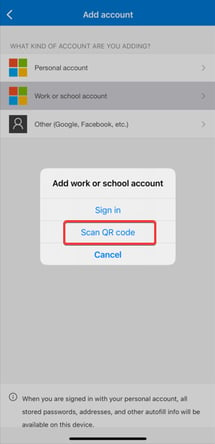
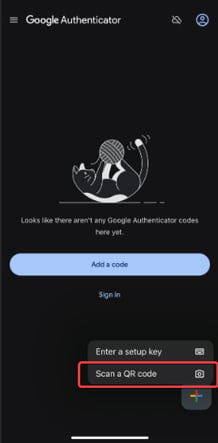
- Once you see the QR code provided, use either Google or Microsoft Authenticator apps to scan the QR code (refer to image below).
 |
 |
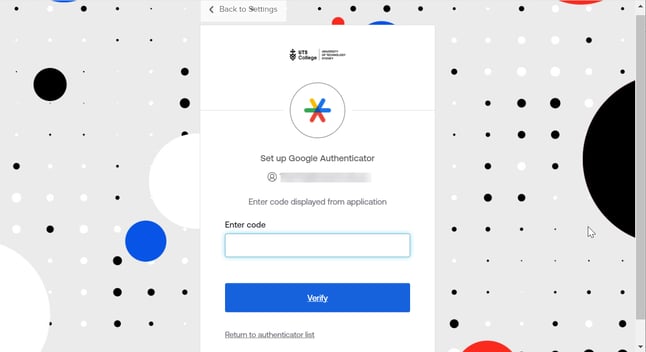
- You will see an account added to your Authenticator app with a 6-digit number. Enter the number into the security method set up page and Verify.
5C. Through Security Key/Biometric Authenticator
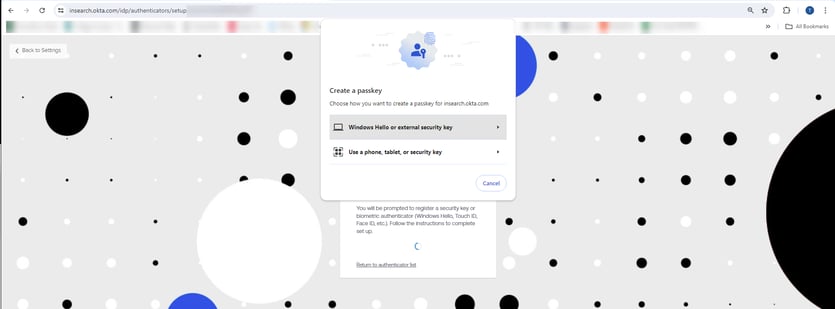
This authenticator method allows the user to set up authentication by creating a passkey via:
- Security Key: a physical device storing sign-in credentials that are created using public key cryptography.
- Biometric Authentication: Fingerprints and Face IDs will be used to authenticate you and grant access to your account from another device.
Choose your desired method and follow the provided on-screen instructions to set this authentication method up.
6. Once completed, you have now successfully enrolled in Okta MFA.
- You’ll need a smartphone with an operating system that is supported by the College identity provider - Okta, to respond to multi factor requests.
- Your smartphone should be relatively modern with a version of a mobile operating system and browser that is currently supported by both the manufacturer of the device and Okta. Click this link to view Supported platforms, browsers and operating systems
2a. Students outside of China: Install and enable the Okta Verify app.
2.b Students in China: Okta Verify does not work in China. Please use the Google Authenticator option when setting up the authenticator method.
Note: Microsoft Authenticator App can be used instead of the Google Authenticator App when setting up Google Authenticator as a factor.
- UTS College ITDS Service Desk portal (Click Here)
- Contact our Service Desk by calling 612 9218 7000.
- If you’re in Sydney, visit the ITDS Service Desk in CB.05.01. Have your identification ready.
- Be ready to answer questions about yourself so we can verify your identity.
- Okta Verify (Recommended)
- Google Authenticator
- Microsoft Authenticator
- Security Key or Biometric Authenticator
Note: Our recommendation is to be registered for any two of the above factor types in case one of the factors is not working.
You will need to register to one of the Multi Factor Authentication types (see below) to ensure access to UTS College applications.
- Okta Verify.
- Google Authenticator
- Microsoft Authenticator
- Security Key or Biometric Authenticator
Once enabled, you’ll need to verify your identity via Okta MFA every 30 days. Unless;
- There has been no activity on your account for 48 hours or more.
- It is the first time you are using a new device.
- When logging in from a new city or country.
Apart from that, you’ll only be prompted by UTS College to MFA in these high-risk situations:
- You log in from a new country, or use a new device:
- You use a VPN, ‘Incognito’, ‘Private Browsing’, ‘In Private’ or similar mode:
To connect to UTS College applications via your preferred Internet browser, such as Chrome, Safari or Internet Explorer, on your personal device.
- You appear to travel at an impossible speed between logins:
If your login credentials are used at two different locations within a very short time frame (Example: Sydney and Sri Lanka within 15 minutes – 1 hour, or when enabling then disabling your VPN).
If you are using a VPN to access UTS College systems, you can expect to be prompted by Okta Verify every time: this is normal.
This can happen if:
- You enable or disable a VPN, as this causes the IP address to change, or
- Okta calculates ‘impossible travel’, which is when a user appears to have travelled an impossible distance in the time between two subsequent logins.
The fastest way to resolve this issue is to reset your authentication methods and re-enrol by accessing Canvas or the Okta User Dashboard.