745405208-SEM-1-2022-How-to-Apply-Desktop

eCAF Guide with screenshots | UTS College

How to complete your eCAF

For domestic students applying for FEE-HELP

If you’re planning to use a FEE-HELP loan to pay your tuition fees, you’ll need to submit an electronic Commonwealth Assistance Form (eCAF).

Only complete an eCAF if you are eligible for FEE-HELP and want to use a FEE-HELP loan.

Once you submit your eCAF, UTS College will assess your application and usually update your admission status within 24 hours. After that, we’ll email you important next steps, including enrolment, timetable setup and orientation information. Keep an eye on your inbox so you don’t miss any updates.
What happens after you complete your eCAF?

Once you submit your eCAF, UTS College will assess your FEE-HELP application and update your admission status, usually within 24 hours.

After you are admitted, we’ll send you important information by email, including:

    • Your enrolment and orientation dates
    • How to enrol in your subjects and create your timetable
    • Welcome Week (orientation) information to help you get ready for study

Keep an eye on your inbox and check your junk/spam folder regularly so you don’t miss any important updates.

Before you start

Make sure you have your:

Please note: the screen shots shown in this guide may look slightly different to what you see in eStudent, but the section titles will remain the same.

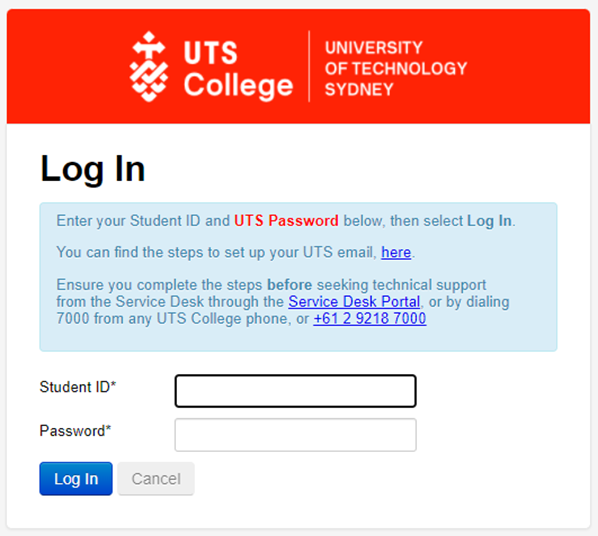
Step 1: Log in to eStudent

  • Go to the eStudent portal.
  • Log in using your UTS College Student ID and the password you created.


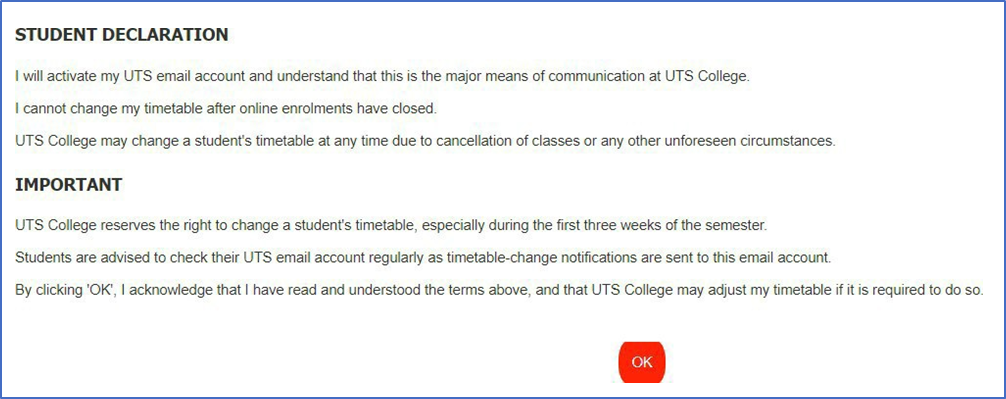
Step 2: Accept the student declaration

When prompted, read the Student Declaration and click OK to continue.

Step 3: Open Commonwealth Assistance

From the top menu, click the Commonwealth Assistance tab.

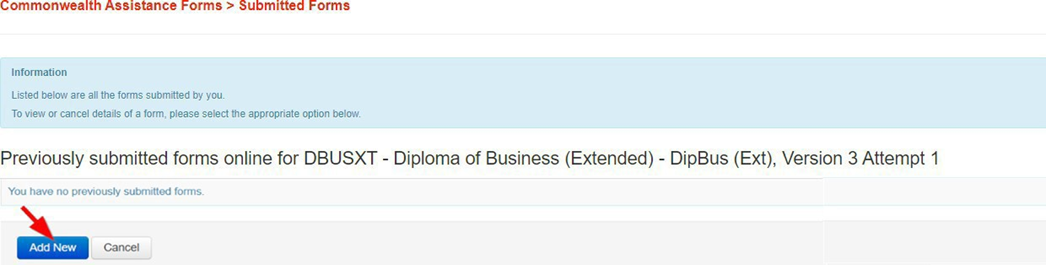
Your course details will appear on the screen. Click Add New to begin your eCAF application.

Step 4: Complete your eCAF

You’ll need to complete the following sections:

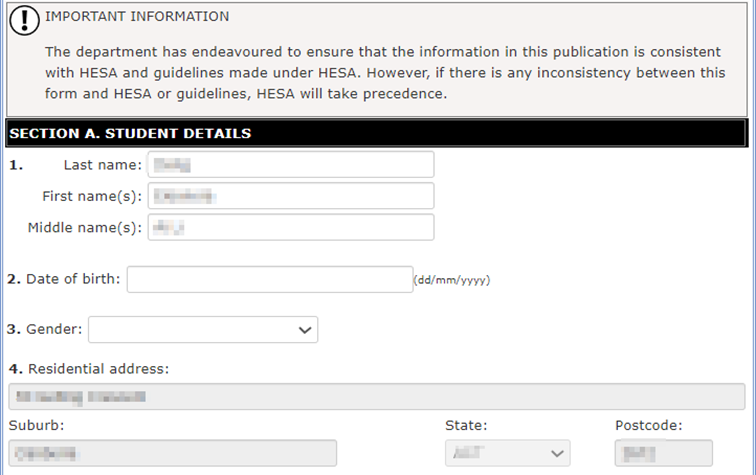
Section A: Personal details

Some information will already be filled in for you. Please check that:

  • Your name matches the name used for your Tax File Number (TFN) and Unique Student Identifier (USI).

  • Your date of birth is correct and matches the details you originally provided to UTS College

  • Your gender is correct

Your address will already be populated and cannot be changed in eStudent.

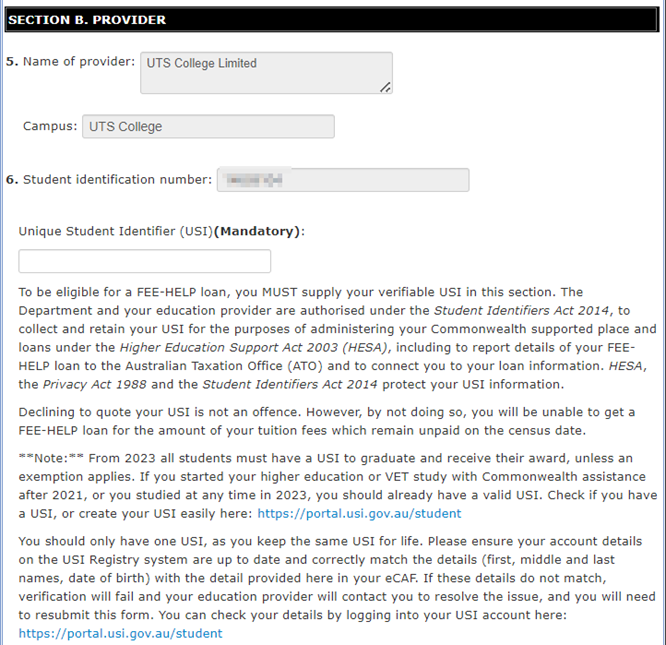
Section B: Unique Student identifier (USI)

Your details may already appear if you’ve previously provided your USI.

If requested, enter your USI in ALL CAPITAL LETTERS.

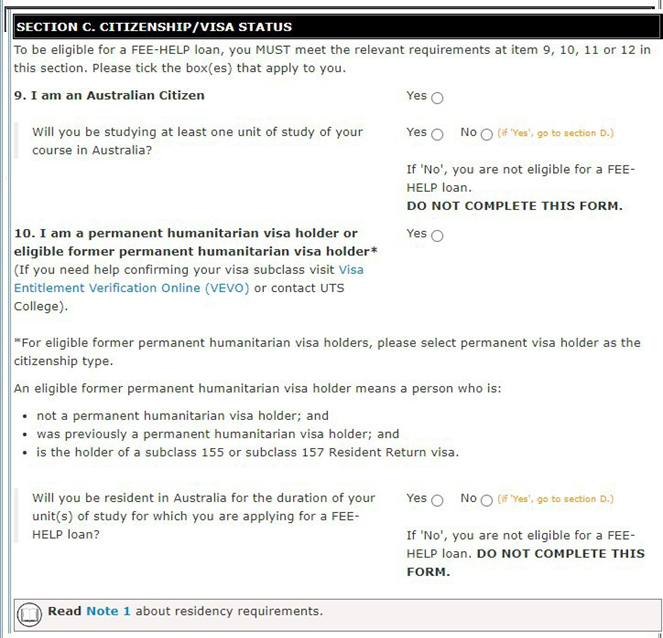
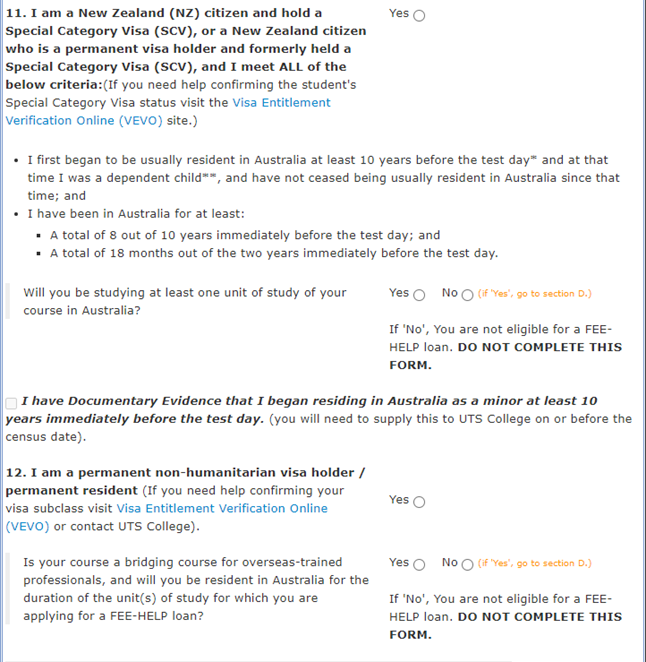
Section C: Citizenship or visa status

Complete this section to confirm your citizenship or visa status.

Tip: you’re an Australian citizen if at least one of your parents is an Australian citizen or permanent resident.

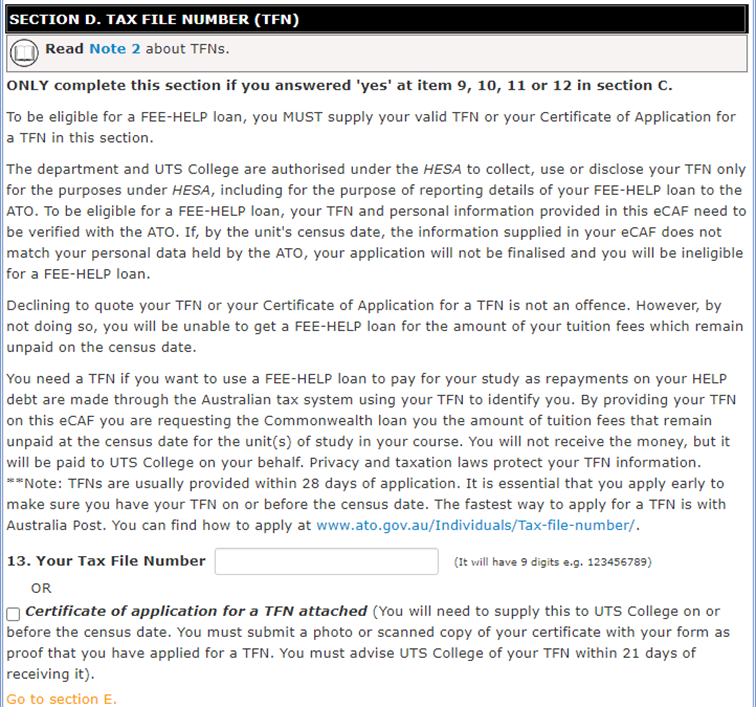
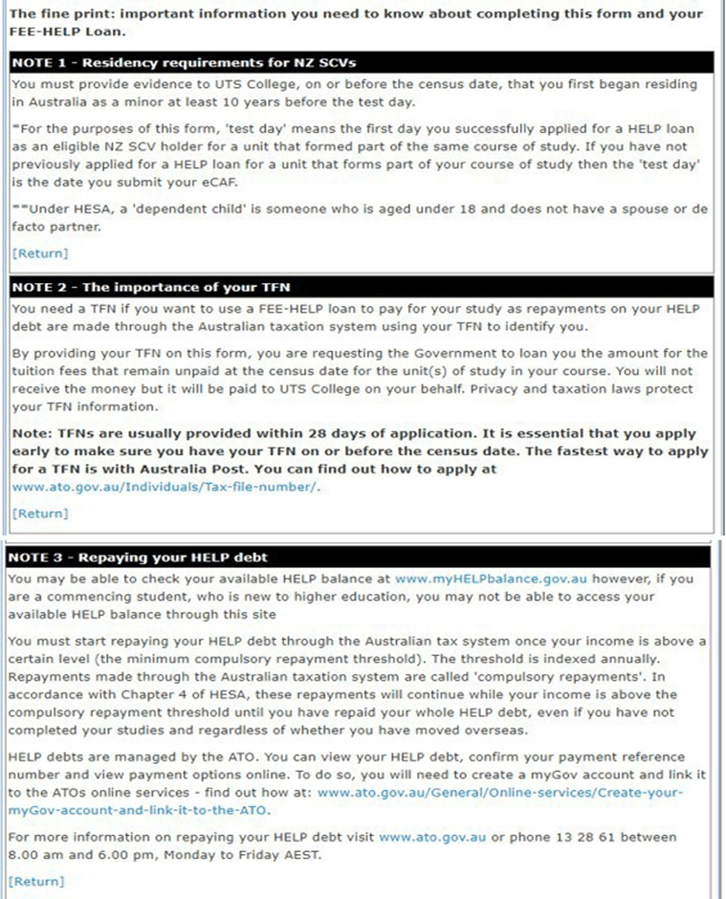
Section D: Tax File Number (TFN)

You will need to either:

  • Enter your Tax File Number (TFN), or
  • Upload your TFN Application Summary and Australia Post receipt if you have applied for a TFN but haven’t received it yet.

Important: You must provide your TFN (or proof of application) before the census date. If not, your enrolment may be cancelled.

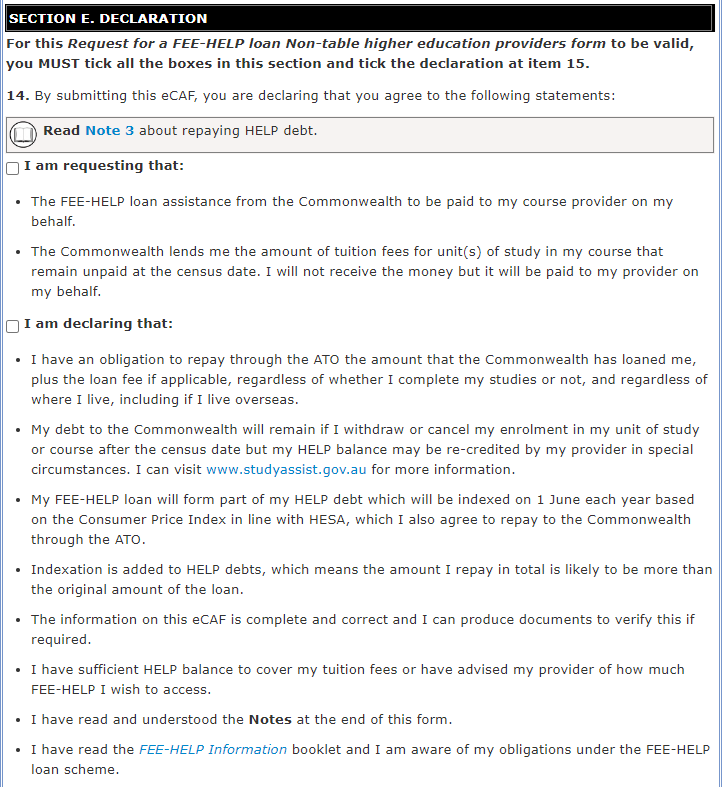
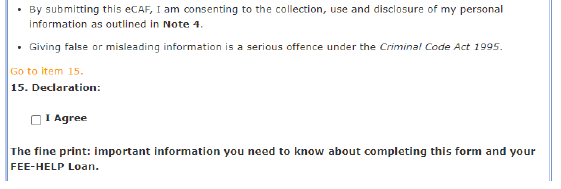
Section E: Read and agree to the declaration.

Tick the boxes to confirm you understand and agree to the FEE-HELP conditions.

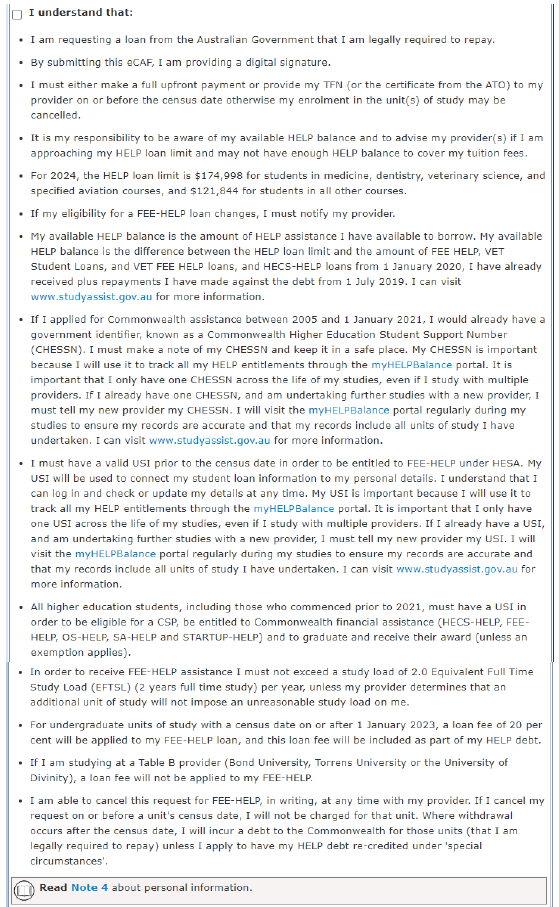
This includes acknowledging that:

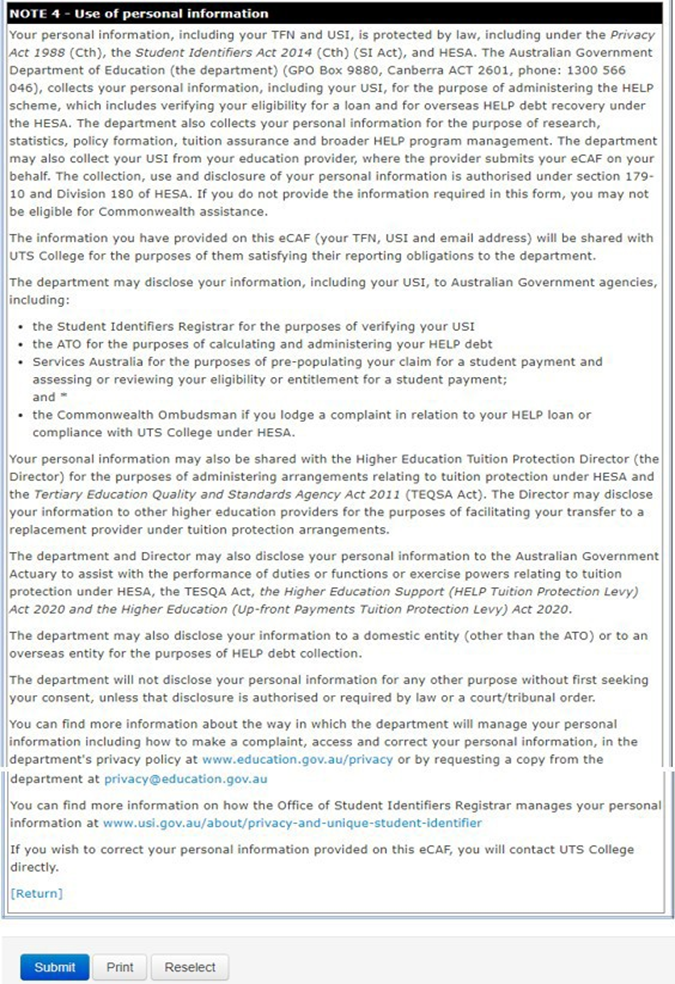
  • You are applying for a loan from the Australian Government that must be repaid

  • Submitting your eCAF acts as your digital signature

  • You are responsible for checking your HELP balance and eligibility

  • You must have a valid USI to receive FEE-HELP

Take a moment to review the important information and notes provided.

What happens next?

After you submit your eCAF, UTS College will:

  1. Assess your FEE-HELP application
  2. Update your admission status, usually within 24 hours. Keep an eye on your inbox for confirmation that you’ve been admitted.
  3. Send important updates via email, including what you need to prepare for your studies, IT requirements, enrolment, timetable setup and orientation information. Please let us know if your email address changes.
  4. Send your welcome information, including key dates for enrolment and orientation.
  5. Invite you to enrol in subjects and create your timetable before classes begin. Online support sessions will be available during enrolment.
  6. Provide Welcome Week (orientation) to help you get ready for study.

Need help? If you have questions about your application or your details have changed, contact the Admissions team at admissions@utscollege.edu.au